
PC tricks and Tips

Cool and amazing PC tips and tricks which will help you...

Games

Cool and amazing games.This contains Cheats and much more

Requests

You can comment on this post for any help or any requests

Facebook chat tricks

Cool and amazing Facebook chat trick.Try these and amaze your friends....

Mobile

Cool and amazing mobile Tricks and Tips which will help you....

Related Posts Plugin for WordPress, Blogger...
Showing posts with label Google. Show all posts

Friday, 10 August 2012

Use Facebook on Google plus


Do you want to use Facebook on Google +
I know it is hard to use two social websites at the same time ...I came up with this post and remember sharing is caring..!!!

Follow my guidelines to do soo.....!!!!


How to access Facebook through Google plus:-


  • Visit here and Download .GOOGLE+FACEBOOKbrowser extension and install it(only gonna take less then 2min)
  • Now login to your Google plus account
  • You will see a Facebook button on top (see in image ) click on  f button[button no. 1. in image]
  • and then click on "  f Connect with Facebook " (see in image [button no.2.])


  • Now click on Allow
  • That's all now you can access facebook through google plus . to access facebook just click on Facebook button (see in image)

Watch the vedio:

Please comment after trying..!!!


Saturday, 30 June 2012

Get homepage for your birthday from google

I have a Gift for your birthday says Google.....!!!


Do you want a Google birthday Homepage?Click the link below

Friday, 29 June 2012

Gadgets for Gmail inbox

First i will teach you how to add a gadget in a GMail inbox..
Step 1:Login to your Gmail account
Step 2:Click on the gear box...

Step 3:Click on settings
Step 4:Click on Labs
gg-settings2
Step 5:Search for a box saying Add a gadget by it's URL.Click on Enable there and click on save changes
gg-labs
Step 6: Click on gadgets and paste the URL in a box saying add a gadget by it's URL
gg-gadget
Choose a Option and click on it.After clicking the URL paste the URL in the box saying Add a gadget by its URL
Unshorten bit.ly URL's in gmail inbox

Use Google earth on Gmail

Create quick notes on Gmail

Add a worldwide clock in Gmail

Use calculator in Gmail

Use Wikipedia in Gmail

Use twitter in Gmail 

Use Facebook in gmail

There are still 100's of gadgets in the google gadget website
The link is given below:
 iGoogle gadgets

Please comment after trying.........!!!

Unshorten bit.ly URL's in gmail inbox


I know a way that will let you unshorten  bit.ly URL's for free and the best part is that you can do soo in your Gmail inbox.You can do soo by just adding a URL in a box saying add a gadget by it's URL.The URL is given below(below the Picture)
gg-bitly

Use Google earth on Gmail


It is hard to go to Google earth and type the location given by your friend in a gmail chat...So i came up with a post that will let you use Google earth on your Gmail inbox.You just need to paste a URL in the box saying Add a gadget by it's URL.The link is give below(Below the picture).

gg-maps
The gadget lets you use the updated Google earth

Create quick notes on Gmail

If you want to make quick notes while using GMail,you can't open sticky notes since it will take a lot of time...I have a solution for that problem.....!!!!
Paste this URL in the box saying add a gadget by its URL
http://www.google.com/ig/modules/sticky.xml

After pasting Click on the the three dots (...) next to the chat symbol at your left side of your screen
Comment after trying

Thursday, 28 June 2012

Add a worldwide clock in Gmail

I have a gadget for gmail that will let you see time worldwide....!!!
Click on the gear box and click on settings
Then click on Labs and search for a box saying Add gadget by it's URL
Paste the link there:
http://gad.getpla.net/poly/clock.xml

After pasting click on the three dots(...) next to chat box
After clicking you can see the clock

Use calculator in Gmail

I know how hard is it to calculate in a middle of a conversation....So I came up with a gadget in Gmail that will give you a calculator to calculate.
Paste the URL in the box saying add a gadget by its URL
Google Calculator
http://calebegg.com/calc.xml

Use Wikipedia in Gmail

Hey friends,I have a gadget for Gmail.You guys will be happy to see a gadget like this. I know you are eagerly waiting to know what is the gadget. Even i don't want to keep you guys waiting. The gadget is a Wikipedia searchbox....!!!
Type the URL below or paste it in the box saying add a gadget by its URL.
http://www.google.com/ig/modules/wikipedia.xml
  
Thats it...!!!Cooment after trying

Tuesday, 26 June 2012

Type text using your voice in browsers

I think Google Crome is the best running browser.Crome has more than 1000+ add-ons , that's the reason for it's popularity....!!!!
Here I am with another add-on which will let you type text using your voice...!!!
This is extremely amazing....!! I haven't seen a browser with this type of add-on.
You can download the add on from the link below:
https://chrome.google.com/webstore/detail/peldinpdedgdcbdehomnpfndejpoibeb

After you are done with installing it.
The next step is that you can see a voice icon at every search box for you to speak the words so that it van type the words you say on any search box....!!!

If you have better browsers than Google Crome please let me know with you comments.
Please comment after trying...!!!

Saturday, 23 June 2012

Download YouTube vedios without any software

First go to YouTube and choose a vedio..
If you want to download it Follow the instructions given below:

Look at the link which will be at the address bar and will look something like this:
http://www.youtube.com/watch?v=PduaRNNjHCs

Just add ss before the link and ahead http://
Like this :
http://sswww.youtube.com/watch?v=PduaRNNjHCs

And click enter
Now it will ask you to choose a format
Choose a format and click download
Thats it..!!!

Feel free to post comments..!!!

Use Facebook,Twitter,Gmail,MSN,Yahoo and more in a single site

Do you want to know how to use all these in a single site .....!!!!!
In this post I will show you how to do so..........

This is very easy...!!!

Just go to www.livego.com
Login with your Facebook account or any other account and use all of those in a single site

That's it....!!!!!
Please comment after trying

Monday, 18 June 2012

Tips to keep your Android Mobile safe

With the amount of information we keep on our smartphones, it's increasingly vital that we protect them and the data they house. I don't want to sound like a fear-monger, but the fact is your phone can be lost or stolen, it can be destroyed, or its contents can be hacked via malware. Here are a few basic and advanced tips to consider to protect everything from your work files to contact information.

The Basics: Keep Your Phone Locked
It's extremely easy and effective to lock down access to your Android phone using built-in tools. Simply tap your way to the "Location and Security" setting. There you can create either a standard password or a screen lock pattern. If you use the screen lock pattern tool, be sure not to make an extremely easy and obvious pattern.

Android Mobiles Security Tips

For Added Security: Hidden Lock adds an extra layer of security that is easy to implement but hard for would-be thieves to crack. After you have unlocked your phone using a password, Hidden Locks requires you to tap a hidden button before you can use the phone.

Avoiding Malicious Apps
Viruses and other malware are increasingly targeting the Android platform, so it's important to take a few precautions to avoid infecting your own phone or tablet.

For the ultimate in security, I recommend only downloading apps from the official Google Playstore, where they have been vetted. Scammers have been known to create fake versions of popular apps, which are loaded with malware and only available at third-party websites.

However, some apps may simply not be available on the app store. If you see an intriguing app, you can verify its reputation by searching for it on Google and seeing if it has been written about, positively or negatively. Be wary of totally obscure apps.

Note App Permissions
Take the time to learn what permissions an app wishes to access, from making phone calls to using your system tools. While it makes sense that a social networking app may wish to access your contacts, it doesn't make sense that a "dancing dog" app would. Be wary when apps ask for more than seems to make sense.

Consider an Anti-Virus
Finally, you can consider an anti-virus program for Android. Savvy users may not need these programs, but apps like Lookout Security & Antivirus do offer powerful features for added protection.

Find Your Lost Phone and Erase Data Remotely
Thanks to GPS and wireless Internet, you can locate a missing Android phone using one of the several apps available. I recommend Android Lost (free). Even with your speakers turned off, you can use this app to play a sound, which is handy when you simply lose the phone in your house. Furthermore, this app also enables you to erase all the phone's data, saving your contact information and files from prying eyes.

You can also take pictures from your camera to know who is using your phone. And better yet: This app can be installed remotely, so you can install it after you have lost your phone. (However, I strongly recommend installing it right away.)

And Don't Forget Physical Mishaps
All the security measures in the world won't matter if your phone breaks from a simple drop. Be sure to invest in a quality case.

Also visit kithapathigmares.blogspot.com for Games

Saturday, 16 June 2012

Reveal the Hidden Teddy bear on Picasa


>>First of all Open the Picasa..
>>If you don't have picasa then download from here.www.google.com/picasa
>>Just type Ctrl+Shift+Y... You will find the Teddy peeping out.
>>U can put any number of Teddies..there and have fun..!!


Also visit kithapathigmares.blogspot.com for Games

Tuesday, 12 June 2012

Download Books from Google Books

Google books can be viewed online but there is no way to make the contents available offline easily, Google book download is tools to download parts or entire books in pdf format. it is quite easy to use like a browser, one-click to download any book available in "full view” from Google books.


Key Features 
* One-click download 
* Manual mode for download copy-protected books. 
* Automatic mode for download public domain books and pdf document. 
* It is a web browser, easy to use. 
* Safely download, prevent to lockout by Google.


Download: http://hotfile.com/dl/43628133/ba73bc0/Google_Books_Download_3.0.1.308.rar.html

Saturday, 9 June 2012

The new google font previewer

The new Google font previewer lets you test drive all the fonts in the directory so you can decide which web font in theGoogle Font API works best for your requirements.
Now, whenever you visit the font family page of any of the fonts, you will see a link saying "Preview this font" that will load your font selection into the font previewer.
Here you can edit the text, change its size and line height, and add decorations and spacing among other things. You can even apply text shadow to your text.

The previewer will generate the corresponding code for you so all you have to do to start using the font on your own website is to copy and paste the stylesheet link and the CSS into your pages. In the example above this would be:
http://fonts.googleapis.com/css?family=Lobster:regular"
rel="stylesheet" type="text/css" >
If you want to see the font sample without any distractions from the font previewer controls, you can do that as well simply by clicking "Toggle controls" in the upper right corner. This will show you a nice clean example of what the font would look like in your design.
The previewer is a great way to try out web fonts and showcase what can be done with them.

Friday, 8 June 2012

Call anyone from Google

By Suraj Dm
Starting today, you can call any phone right from Gmail, says Google, at a company press conference today. Dialing a phone number works just like a normal phone. Just click "Call phone" at the top of your chat list and dial a number or enter a contact's name.


Gmail voice and video chat makes it easy to stay in touch with friends and family using your computer's microphone and speakers. But until now, this required both people to be at their computers, signed into Gmail at the same time. Given that most of us don't spend all day in front of our computers, they thought, "wouldn't it be nice if you could call people directly on their phones?"

Calls to the U.S. and Canada will be freefor at least the rest of the year and calls to other countries will be billed . It's really cheap (see comparison table) with calls to the U.K., France, Germany, China, Japan—and many more countries—for as little as $0.02 per minute.

Dialing a phone number works just like a normal phone. Just click "Call phone" at the top of your chat list and dial a number or enter a contact's name.
If you have a Google Voice phone number, calls made from Gmail will display this number as the outbound caller ID. And if you decide to, you can receive calls made to this number right inside Gmail (see instructions).

They are rolling out this feature to U.S. based Gmail users over the next few days, so you'll be ready to get started once "Call Phones" shows up in your chat list (you will need to install thevoice and video plug-in if you haven't already). If you're not a U.S. based user—or if you're using Google Apps for your school or business—then you won't see it quite yet. We're working on making this available more broadly—so stay tuned!

For more information, visitgmail.com/call.

Graph your Inbox with Crome browser

Many people who have had Gmail for a long time, don't really care about their emails anymore. Their in-box just gets bigger and bigger with all the emails they receive. Well now a PHD Canditate has come up with a feature that can be downloaded only exclusive for Google Chrome. Easily with Graph Your Inbox, you can graph your emails according to your contacts or graph them according to anything you want. For example, you can check your Facebook activities and it will show you how many messages or notifications you get every hour, day or month.


Graph Your Inbox is a Google Chrome extension that allows you to graph Gmail activity over time. You can use it to visualize your communication with friends, your Facebook activity, when you purchased items on Amazon or how often you use certain words or phrases. We provide the same search functionality used by Gmail, but instead of a list of messages we show you a graph of your email trends over time.
Download it here.
Note: This extension does not save any personal information and does not send any personal information to any server. It does not request or record your email password. This extension does not modify the Gmail website or your email in any way.

Wednesday, 30 May 2012

Download Google Chrome For Android


Google Chrome browser until now as my favourite browser for browsing internet. Lightweight, fast, and simple, make me more prefer using Google Chrome besides Firefox dan Internet Explorer. Now, you get this one Google Chrome browser for your android.


Features:
- Browse fast with accelerated page loading, scrolling, and zooming
- Search and navigate directly from the omnibox
- Open and switch between unlimited tabs in an easy-to-view stack
- Sign in to Chrome to sync your bookmarks and view tabs you have open on your computer
- Send pages from desktop Chrome to your smartphone or tablet with one click and read them on the go, even if you’re offline
- Browse privately in Incognito mode


Download Now!, It's FREE : Chrome for Android ( Android Market )

Sunday, 27 May 2012

Best keyboards for android

Jwisser/Flickr

The advent of the smartphone and the emergence and increasing popularity of tablets has changed the way people communicate. Voice-calling has almost taken a backseat, with a lot of users primarily using their handhelds for internet browsing, email, and some, even for writing complete documents, spreadsheets, etc.

Capacitive touchscreen technology and the increasing size of smartphone screens has made it easier for users to type long messages, emails, and notes on a full QWERTY virtual keyboard. Remember the time when typing a "C" required you to tap the 2 key on the phone number pad three times, in quick succession?

Unfortunately, for many consumers, touchscreen keyboards aren't that easy to use, and most users are quite unhappy with the stock keyboards available on their devices. This has led to the emergence of many third-party virtual keyboard applications. Apart from just providing a full keyboard, these apps are also smarter, featuring word-completion recommendations using built-in dictionaries, swipe and slide features for easy typing, and, in the case of tablets, thumb keyboards for typing on the much larger screens.

Today, we'll talk about some of the best keyboards available for Android smartphones and tablets. Here are are few things that you will need to know about the video:

  • Since many find typing on larger screens slightly difficult, we will be using a tablet for our purposes.
  • The ColorNote Notepad app is used to show the functionality of the various keyboards.
  • The input methods were configured in Settings beforehand.

Let's take a look.

SwiftKey Tablet X

SwiftKey X is one of the most popular third-party Android keyboards available on the Google Play Store. It boasts a number of useful features, including:

  • The tablet application features smaller keys and a layout for thumb typing.
  • An impressive word prediction system that not only completes words but also gives you an option for what you may want to type next.
  • Keyboard options include Settings, Voice Input, Share, and Support.
  • "Learn from Facebook, Gmail, Twitter, and RSS feed" option allows the keyboard to use and sync words you've used on the mentioned sites.
  • Theme options include Neon, Light, Pumpkin, and Dark.
  • Advanced settings feature Typing style, Spacebar options, Autocap options, haptic feedback, and voice recognition settings.
  • Swiftkey X stats, which shows how much your efficiency improves and how many keystrokes you save when using Swiftkey X.
  • You can quickly switch between the regular and the split keyboard layout.

As you can see, Swiftkey X features comprehensive settings options and customization abilities, which make it one of most popilar keyboard apps in the Play Store. You can download the keyboard from the Google Play Store here (phone version) and here (tablet version) for $2.99. There is also a 1-month trial version available.

SlideIT

SlideIT is a keyboard app with swipe capabilities, a la the Swype keyboard, where you "slide" from letter to letter to type out a word. Features include:

  • An extensive word recommendation dictionary.
  • Voice recognition capability and up to four pages for punctuation and symbols.
  • Choice between regular typing or using the slide feature.
  • Multiple language settings available.
  • Settings include Language options, Look and Feel settings, Preferences, Share, Skins, and Speech-to-Text settings.
  • "Look and Feel" settings feature a choice between SlideIT 3D and Classic skins, Landscape and full screen modes, Long press duration, and visual settings reset.
  • "Import Contacts" allows the keyboard to recognize the names that you type.

I use the SlideIT keyboard, but I personally find the slide function quite difficult on the larger screen of a tablet, but very convenient on my smartphone. You can download the keyboard from the Google Play Store here. It is currently on sale for $0.99. There is also a 15-day trial version available for free as well.

Thumb Keyboard
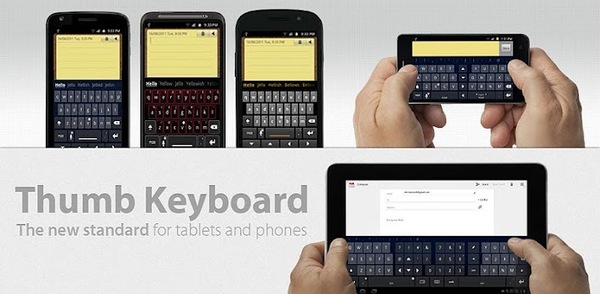
The Thumb keyboard, as the name suggests, is ideal for thumb typing, which is especially useful for tablets. It also features a lot of advanced functions that improve productivity. Features include:

  • Stock configuration features large tiles ideal for typing on a tablet. Features two separate panels for numbers, punctuation, and symbols.
  • Various layout options include – Phone Standard, Phone Split Large, Phone Split Compact, Phone/tablet 5″, Tablet 7″ Layout 1, Tablet 7″ Layout 2, Tablet 10″/9″ Layout, and a Custom Landscape/Portrait combination.
  • Comprehensive word-completion suggestion function.
  • Further layout customization allows you to set a thumb keyboard option for one hand and also features a full (standard) layout keyboard.
  • Highly-responsive and easy to use.

As you can see, it has multiple optimization options for devices of all sizes and types, and is certainly very easy to use. You can download the Thumb keyboard for $2.99 from the Google Play Store here.

LogiType Keyboard
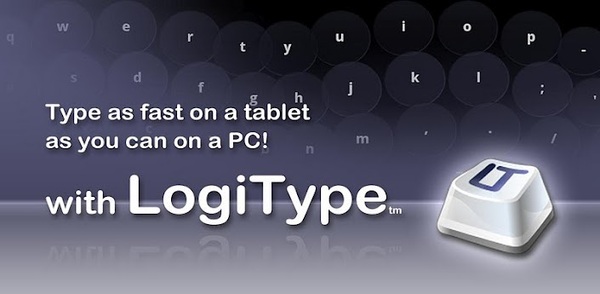
Logitype uses a groundbreaking technology that moves and resizes keys while you type to accommodate your typing style. The layout also mimics a PC keyboard, which gives new users a sense of familiarity and ease when typing. Features of this keyboard include:

  • Learns where your hands are to give a more fluid and customized approach.
  • Includes a horizontal number pad layout, page up and page down keys, arrow keys, and a tab button similar to a PC keyboard

If you find standard keyboards uncomfortable and are looking for a close-to-PC experience, this is the keyboard for you. You can download it for free from the Play Store here.

ICS Keyboard
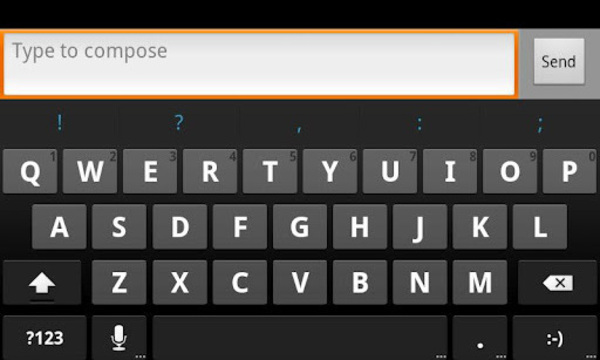
If you're one of the many unlucky Android users still stuck on an older version of Android and looking for a slice of Ice Cream Sandwich, this is the keyboard for you. Features include:

  • This is a standard layout and is not a thumb keyboard.
  • Portrait mode on the tablet is very similar to using the keyboard on a smartphone.
  • Multiple pages for numbers, punctuation, and symbols.
  • Voice recognition capability.
  • Settings include haptic feedback, longpress options, and keypress options.
  • While the keyboard is free, a donationware version features theme and background settings, change height, and dictionary.

You can download ICS keyboard here.


Zhacks