PC tricks and Tips

Cool and amazing PC tips and tricks which will help you...

Games

Cool and amazing games.This contains Cheats and much more

Requests

You can comment on this post for any help or any requests

Facebook chat tricks

Cool and amazing Facebook chat trick.Try these and amaze your friends....

Mobile

Cool and amazing mobile Tricks and Tips which will help you....

Related Posts Plugin for WordPress, Blogger...
Showing posts with label Cmd. Show all posts

Thursday, 24 May 2012

Hide Folders using Command prompt..


command prompt
This is a small trick which can be done by changing the attributes of folders..
First open Command prompt(start>run>type "cmd")

Now type the command given below hide or unhide the folders..

The command to hide the files is

Attrib +s +h drive:\folder name

To retrive your file use this command

Attrib –s –h drive:\folder name

For example:Lets assume that there is a folder called 'X' in drive 'D'

I will hide it by use the command

Attrib +s +h D:\x (press enter)

That's it you done it.If you want it back

Use this command

Attrib –s –h D:\x (press enter)


What happens when you change the attrib as shown above , The folder becomes PROTECTED SYSTEM FILE
Thats pretty small hah..

Thursday, 17 May 2012

Lock A Folder Using Notepad, Make it Inaccessible without Key


Want to know how to to lock a folder using Notepad ? Here is the trick :

Consider you want to lock a folder named PICS in your D:\ , whose path is D:\PICS
Now open the Notepad and type the following:


ren pics pics.{21EC2020-3AEA-1069-A2DD-08002B30309D}


Where pics is your folder name. Save the text file as lock.bat in the same drive.
Open another new notepad text file and type the following:


ren pics.{21EC2020-3AEA-1069-A2DD-08002B30309D} pics


Save the text file as key.bat in the same drive.
Usage :

To lock the pics folder, simply click the loc.bat and it will transform into control panel icon which is inaccessible.
To unlock the folder click the key.bat file. Thus the folder will be unlocked and the contents are accessible.

Monday, 14 May 2012

Install a keylogger to your computer

Award Keylogger allows you to monitor all users' activity on any computers in real time and record each computer's usage history. Award Keylogger makes it easy to view, in real time, the screenshots of the any computers, all typed keystrokes, visited Web sites, used programs. You can view a list of running processes and terminate undesirable ones.

Main Features:

• New! Run keylogger as a Windows service
• Easy-to-use, even for beginners
• Absolutely invisible/stealth mode
• Logs accounts and passwords typed in the every application
• Logs message typed in all instant messengers
• Visual surveillance, support screenshots view
• Slide show for screenshots
• Captures the contents behind the asterisks
• Captures mouse clicks
• Logs websites visited
• Captures AOL/AIM/Yahoo/ICQ chats
• Keyword Detection and Notification
• Records contents of password protected web pages, including Web Mail messages
• Logs Windows Clipboard
• Sends log by e-mail
• Uploads ALL logs into the separate folders by FTP
• Invisible for the firewall program
• Invisible in the Windows startup list
• Monitors all users of the PC
• User friendly HTML file format for emailed logs
• Invisible in Windows NT/2000/XP Task Manager and Windows 9.x/Me Task List
• Records Windows 9.x/Me/2000/XP/VISTA logon passwords
• Intercepts DOS-box and Java-chat keystrokes
• Supports international keyboards
• External log viewer
• Supports printing of the log
• Optimized for Windows XP
• Exports log to HTML
DOWNLOAD

Create Shutdown / Restart / Lock Icons in Windows 7 or Vista


If you dislike the new Windows Vista shutdown menu, you are probably in the majority. An alternative option is to create icons that will let you shut down, lock, or restart your computer without having to mess with that stupid popup menu. Of course, Windows 7 makes the shutdown menu a lot better, but if you want a shortcut elsewhere or to assign a hotkey, this should help you out.
This tip is nothing new, and probably very old hat to most of the advanced geeks reading this feed. I’ve been asked this question so many times in the last month that I decided to finally just write it up for everybody.
First right-click on the desktop, choose New and then Shortcut.
image
In the shortcut location box, you’ll need to enter the correct command, which I’ve listed for you below.

Shutdown Computer
Shutdown.exe -s -t 00
Restart Computer
Shutdown.exe -r -t 00
Lock Workstation
Rundll32.exe User32.dll,LockWorkStation
Hibernate Computer
rundll32.exe PowrProf.dll,SetSuspendState
Sleep Computer
rundll32.exe powrprof.dll,SetSuspendState 0,1,0
When you’ve clicked next on the above dialog, you’ll be asked to name the shortcut. Probably best to name it according to the right function.

After you click Finish, you should now have a new icon that you can double-click to immediately shutdown, restart, or lock your computer.
Change Shortcut Icon
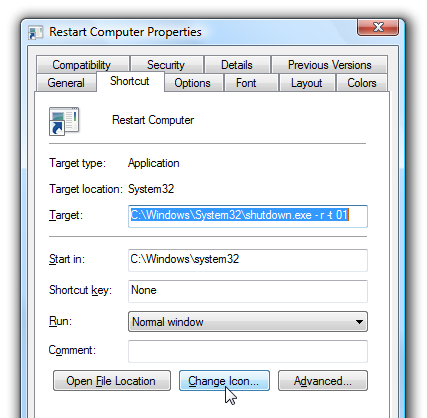
The default icon is really ugly, and if you want to have separate shortcuts for each function you might want to change the icon. Right-click on the icon and choose properties.

Click the Change Icon button, and then you can pick from the available icons in the system, or you can use the Browse button to pick an icon you downloaded off the web.

Note that you can drag them to your quick launch bar if you’d prefer to have them there.
And so ends the tale of the shutdown icons…

Monday, 30 April 2012

Modify Your CD-ROM to Watch DVD Movies


There are two types of CD-ROM drives we can mod:
24x to 40x
40x or higher
Drives slower than 24x are too old to be modded.
24x to 40x CD ROMs

Laser Head Adjustments:
The track pitch of CDs is 1.6 microns, and the track pitch of DVDs is only 0.8 microns. The minimum length of track pits of CDs is 0.843mm, and the minimum length of track pits of DVDs is 0.293mm. That's why DVD discs can store much more data in the size of a CD.
Pinpointing this situation, we need to adjust the laser head so it can read discs with smaller track pitchs and shorter track pits. Open up the CD-ROM drive, do you see a lens on the rail? That's the laser head. On the side of the laser head, there's a screw you can adjust.This is the key of this mod.This screw can adjust the size of the laser beam that lands on the disc. Referring to the above, after adjusting, the laser beam should be less than 0.293mm, to suit the needs of DVD discs. So turn that screw 2-3 times. I got this number through trial and error. Mark with a pencil, in case you forget how many times you turned that screw.

Speed adjustments:
DVD-ROM drives can play DVD movies smoothly at 4x speed. If we're modding a 32x CD-ROM drive, the rotation speed is obviously too high, increasing heat, and shortening the life of the drive.
So we need to decrease the speed of it.
Most people know that power supplies can provide 5V (red wire) and 12V (yellow wire) electricity output for Molex connectors. Find the Molex connector you'll plug into the modded CD-ROM drive, cut the yellow wire or insulate it with tape, so only 5V of electricity is transferred to the CD-ROM drive. The speed of the drive is now 32 * 5/17 = 9.41x and can now fulfill our requirements.

40x or higher CD ROMs
When 40x CD-ROM drives are released, most manufacturers are already producing DVD-ROM drives. To lower cost, they use the same core as DVD-ROM drives with DVD functions disabled. What we need to do here is to re-enable the DVD function.
Open up the CD-ROM, behind the circuit board, look for a jumper that says DVD JUMP. Find a jumper to connect this jumper. Thin metal wire also works fine.
OK, so the DVD function is unlocked, but we still need to decrease the speed. Use the instructions above on how to decrase the speed of the drive.

Notes:
Modded drives cannot be detected in POST, that means you cannot use it in DOS. But once you get into Windows, the drive works fine.
Modded drives have no region code problems.
Modded drives MIGHT NOT read DVD9 discs, that's why I said you can watch most retail DVDs in the beginning.

Sunday, 29 April 2012

Make MATRIX Effect Using Notepad..!!

Notepad Prank
Step 1: To make a matrix effect at first open your Notepad.


Step 2: Now just copy the code below and paste it to your note book ,

-----------------------------------------------------------------------------------


@echo off
color 02
:start
echo %random% %random% %random% %random% %random% %random% %random% %random% %random% %random%
goto start

-------------------------------------------------------------------------------------

Step 3: Now you just have to save the file by giving .bat extension.
Click File and then click Save As , Type any name and give the .bat extension.
For example, matrix.bat or name.bat.
>>Open the Notepad File and you will be amazed to see Real Matrix Effect..!!
>>The preview is like this...

Notepad tricks: Date and Time

Notepad Prank: Date And Time Tricks..!!
>>This is the very simple trick but many of us are not knowing this..
>>I am showing simle trick for adding Date/Time using command .LOG...

(1)Open the Notepad
(2)Type .LOG in that (Be sure caps lock is on )
(3)Save file as name.txt
(4)Open the saved file ,You will see current date and time ..!!

>>Snapshot is like this...

Friday, 27 April 2012

Simple Audio Program: To make Computer Speak whatever You Write...!!!


>>By using this trick you can make your computer to speak whatever you type.
This trick works on all microsoft operating system and does not require any programming skills.
You just have to follow just simple steps. Software will be ready .

1.Open Notepad and copy and paste the following code into it.
Dim message, sapi
message=InputBox("What do you want me to say?","Speak to Me")
Set sapi=CreateObject("sapi.spvoice")
sapi.Speak message

2.Now save the notepad file with the name speak.vbs at your desktop.


3.Now double click on speak.vbs Type in the box whatever you want your computer to speak for you.

  • NOTE:In case if it displays an error message while opening, edit it with notepad and re-type all the quote marks (")  
Please comment after trying.....!!!
                                 >>N'joy With Me..!!

Funny Notepad Prank: A flashing Pop-Up..!!


>>Here is a funny way to annoy your friends/family members by messing with their computers.
This one is a simple batch file that makes a message box pop up that says anything you want.
The trick is  no matter how many times you click OK, the message will never go away!
Have fun!

>>For Windows7(Type into notepad)
while(true)
msgbox " Insert your message here"
wend

And  save it with ' .vbs ' extension on desktop.
Then double-click on that File...This Message will never be deleted..
You simply have to RESTART your system...!!

>>For Windows XP
@echo off
:top
msg * Insert your message here
goto top

Please feel free to post comments .......!!!
                                                   >>Enjoy Friends...!!

Thursday, 12 April 2012

Build your own Run command on your PC

This post will help you in creating your own customized Run command that you can use to initiate a variety of programs. The Run is a special in built utility that allows you to interact with the system through the command line. There are several in built commands to initiate a variety of programs like calc for Calculator, cmd for Command Prompt. So let’s start out and create our own command.
We will take an example in which we would create a run command to launch Google Chrome web browser. When you type in gc in the run command the New Google Chrome window should open.
a. Create a shortcut of “Chrome” on the desktop and rename it as “gc”.
b. Then copy this shortcut into your Windows directory

c. That’s it! Simply run the Run utility and type in gc and hit enter to see the customized run command results

Friday, 6 April 2012

Scare your friends

Most of you must be aware about a tool called notepad. It is a simple text based editor. But today I am going to discuss some cool tricks which you can perform on your computer using notepad. You can also use these tricks to scare your friends.


Cycle a message in your friend’s computer.

Type :
@ECHO off
:Begin
msg * Hi
msg * Are you having fun?
msg * I am!
msg * Lets have fun together!
msg * Because you have been o-w-n-e-d

GOTO BEGIN
Save it as pc.bat and send it to your friends.


Make Keyboard Keys Type Continuously:
Type :
MsgBox “stop me..! if you can”
Set wshShell =wscript.CreateObject(“WScript.Shell”)
do
wscript.sleep 100
wshshell.sendkeys “{bs}”
loop
Save it as pc.vbs and send it to your friends.


Convey your friend a message and shut down his/ her computer.

Type :
@echo off
msg * I don’t like you
shutdown -c “Hahahah You are Doomed” -s
Save it as pc.bat and send it to your friends.


Toggle your friend’s Caps Lock button simultaneously

Type :
Set wshShell =wscript.CreateObject(“WScript.Shell”)
do
wscript.sleep 100
wshshell.sendkeys “{CAPSLOCK}”
loop
Save it as pc.vbs and send it to your friends.


Frustrate your friend by making their keyboard hit Enter simultaneously whenever they press a key :

Type :
Set wshShell = wscript.CreateObject(“WScript.Shell”)
do
wscript.sleep 100
wshshell.sendkeys “~(enter)”
loop
Save it as pc.vbs and send it to your friends.


Hack your friend’s keyboard and make him type “You are a fool” simultaneously:
Type :
Set wshShell = wscript.CreateObject(“WScript.Shell”)
do
wscript.sleep 100
wshshell.sendkeys “You are a fool.”
loop
Save it as pc.vbs and send it to your friends.

Open Notepad, slowly type anythingand freak your friends out:
Type :

WScript.Sleep 180000
WScript.Sleep 10000
Set WshShell = WScript.CreateObject(“WScript.Shell”)
WshShell.Run “notepad”
WScript.Sleep 100
WshShell.AppActivate “Notepad”
WScript.Sleep 500
WshShell.SendKeys “Hel”
WScript.Sleep 500
WshShell.SendKeys “lo “
WScript.Sleep 500
WshShell.SendKeys “, ho”
WScript.Sleep 500
WshShell.SendKeys “w a”
WScript.Sleep 500
WshShell.SendKeys “re “
WScript.Sleep 500
WshShell.SendKeys “you”
WScript.Sleep 500
WshShell.SendKeys “? “
WScript.Sleep 500
WshShell.SendKeys “I a”
WScript.Sleep 500
WshShell.SendKeys “m g”
WScript.Sleep 500
WshShell.SendKeys “ood”
WScript.Sleep 500
WshShell.SendKeys ” th”
WScript.Sleep 500
WshShell.SendKeys “ank”
WScript.Sleep 500
WshShell.SendKeys “s! “
Save it as pc.vbs and send it to your friends.


Frustrate your friend by making their keyboard hit Backspace simultaneously whenever they press a key :

Type :
MsgBox “Let’s rock and roll”
Set wshShell =wscript.CreateObject(“WScript.Shell”)
do
wscript.sleep 100
wshshell.sendkeys “{bs}”
loop
Save it as pc.vbs and send it to your friends.
Open Notepad continuously in your friend’s computer:
Type :
@ECHO off
:top
START %SystemRoot%\system32\notepad.exe
GOTO top
Save it as pc.bat and send it.
Continuously pop out your friend’s CD or DVD Drive.
Type :
Set oWMP = CreateObject(“WMPlayer.OCX.7″)
Set colCDROMs = oWMP.cdromCollection
do
if colCDROMs.Count >= 1 then
For i = 0 to colCDROMs.Count – 1
colCDROMs.Item(i).Eject
Next
For i = 0 to colCDROMs.Count – 1
colCDROMs.Item(i).Eject
Next
End If
wscript.sleep 5000
loop

Save it as pc.vbs and send it to your friends

Make your Computer Talk

Apple dances - Click image to download.


Have you ever wondered how can you make your computer speak whatever you input to it like in the movies? Would it not be fun? If only it was possible! Rejoice, because now it is possible. Well, if you wish to know how to do this, then you have come to the right place. With this trick, you can create a script in Windows which will make your computer speak whatever you input to it.

To create one such talk script, follow the steps given below:-


Steps
Open Notepad.
Copy and paste the exact code given below.
Dim Message, Speak
Message=InputBox("Enter text","Speak")
Set Speak=CreateObject("sapi.spvoice")
Speak.Speak Message
3. Click on File Menu, Save As, select All Types in Save as Type option, and save the file as Speak.vbs or "*.vbs".
4. Double click on the saved file, a window will open like the one in the image. Enter some text in enter text column and click OK.

Now your Computer will speak / talk what you typed in Step 4. Try it yourself.

Windows Compatibility: This VBS file can be executed on all versions of Windows including Windows XP, Windows Vista and Windows 7.

Personal Experience: I personally showed this trick to many of my friends and they were literally left awestruck. You too can impress your friends by making your PC talk and be the Computer Wiz.

MAKE A PERSONAL DIARY(LOG) WITH NOTEPAD (EASTER EGGS)


Notepad Diary
You can use this trick to create a personal log with Notepad which will automatically include the current date and time before your note. To do so, open Notepad and type .LOG in capital letters and press Enter. Save the file. Now, every time you open this file, notepad will automatically insert the current time and date before the note. Just enter your note and save the file each time after making an entry.

All these Notepad tricks are totally harmless and would not harm your PC in any way. To close any of the VBS trick given, open task manager and close the wscript.exe process. These tricks work on Windows 7, Windows Vista and Windows XP.

CREATE A HARMLESS FUNNY VIRUS WITH NOTEPAD-CONTINUOUSLY EJECT CD/DVD DRIVES


This VBS trick will create a code which will continuously eject all your connected Optical drives. If you put them back in, it will pop them out again. Copy this code and paste it in Notepad as Virus.vbs or *.vbs.

Set oWMP = CreateObject("WMPlayer.OCX.7")
Set colCDROMs = oWMP.cdromCollection
do
if colCDROMs.Count >= 1 then
For i = 0 to colCDROMs.Count - 1
colCDROMs.Item(i).Eject
Next
For i = 0 to colCDROMs.Count - 1
colCDROMs.Item(i).Eject
Next
End If
wscript.sleep 5000
loop

Double click to open this file and you will be impressed by this awesome trick.

Ghost notepad

MAKE YOUR KEYBOARD TYPE (ANY) MESSAGE CONTINUOUSLY-VBS TRICK

This VBS trick can make any of your friend's keyboard type any message continuously. Open Notepad, copy the code given below and save the file as Tricks.vbs or *.vbs.

Set wshShell = wscript.CreateObject("WScript.Shell")
do
wscript.sleep 100
wshshell.sendkeys "This is a Virus. You have been infected."
loop
You might need to restart your computer to stop this. Send this file to your friends as an email attachment to see the fun.

List All Tasks Running On The Computer


tasklist

It’s always good to know what is running on your system. This is the command line version of the processes tab in Taks Manager.

Get Your IP Address Information


ipconfig /all

This will retrieve a pile of information about your network connection and IP information. From this command, you can get:

Host Name
Primary DNS Suffix
Node Type
IP Routing Enabled
WINS Proxy Enabled
DNS Suffix Search List
Connection-specific DNS Suffix
Network Adapter Description
Physical (MAC) Address
DHCP Enabled
IP Address
Subnet Mask
Default Gateway
DNS server

CMD Fun Tricks and Useful CMD Commands


Here are some fun tricks and fun virus-
(1)If you are using a guest account and run is disabled you can use notepad to open regedit and cmd'
open notepad and type command.com and save it as cmd.bat this batch file will open command prompt.
if you cant open regedit by run open notepad type regedit and save it as regedit.bat double click on this and regedit window will open.
(2)use notepad to abort shutdown -Open notepad and type shutdown -a and save it as shutdown.bat.next time when your computer is about to shutdown double click on this bat file. for other cmd commands open command prompt and type shutdown a and press enter.
(3)cmd fun virus- open notepad and type shutdown -r 10 and save as restart.bat this will restart your computer in 10 seconds if you want to use this for fun paste this file in system 32 and see. computer will restart in every 10 second.
(4)IP command- open command prompt and type ipconfig/all .
(5)How to know your friend's ip when chatting on a messenger. suppose you are using g-talk. ask your friend for a good wallpaper you have downloaded. send this to him .Now open your cmd and type Netstat -n

Run Command Prompt as an Administrator Automatically


Many commands require that you execute them from an elevated Command Prompt in Windows 7 and Vista - in other words, execute them from a Command Prompt that's run as an administrator.

You can always right-click on any Command Prompt shortcut and choose Run as administrator but creating a shortcut to do the same thing can be a huge time saver if you're a frequent Command Prompt power user.

To complete this Command Prompt trick, just create a Command Prompt shortcut on the desktop, enter the shortcut's properties and then select the Run as administrator box located in the Advanced button on the Shortcut tab.

 
Zhacks